



One of the most common questions we’ve received early on in the CFB 26 season is how to use the smart route and custom stem features on offense and the corresponding custom zones on defense.
In this article, we will quickly go over how to do each of those things (as well as what they are designed to do).
We’ll start with a video and then go into more depth with screenshots and a written breakdown below.
How To Smart Route In CFB 26
Let’s first start out with the smart route. The smart route is designed to take your receivers route just past the first down marker before they break.
To smart route a player, get to the line of scrimmage, click on Y/triangle then click on the icon of the receiver you wish to smart route, then click RB/R1.
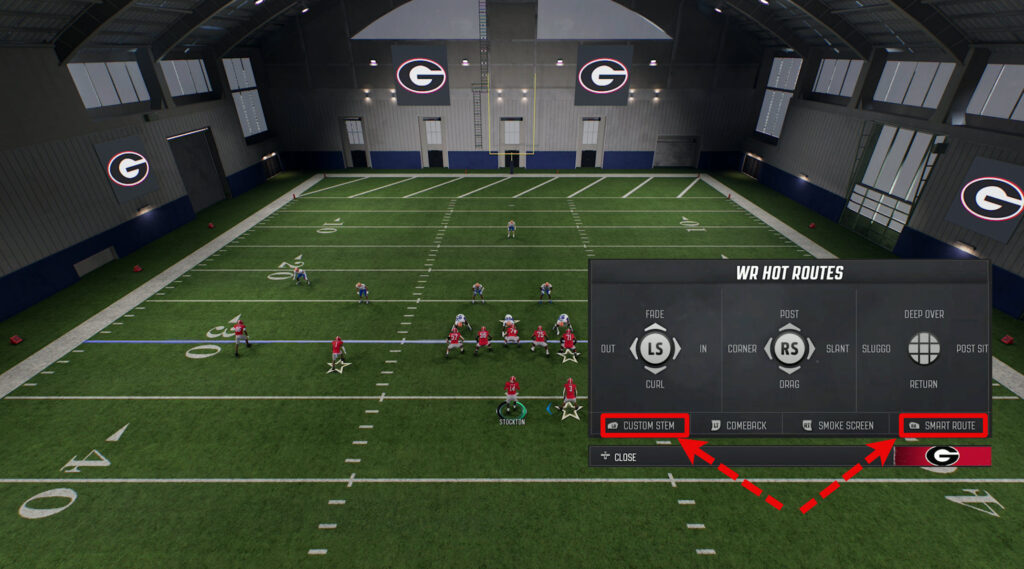
You can see the smart route option called out on the bottom right. We’ll get to the custom stem option later.
We can take a look at how it impacts this hitch route, ran by our X receiver, in a 1st and 10 situation.
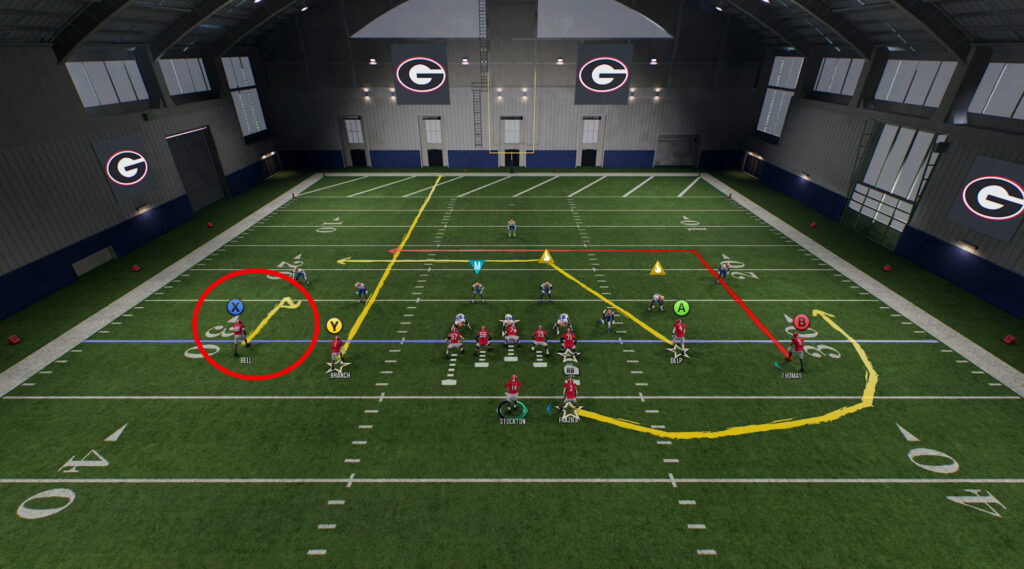
You can see that in the default play design he runs about a 5 yard hitch.
After we smart route him, the route ends up a little over 10 yards. That way if he catches it, he is sure to get a first down.
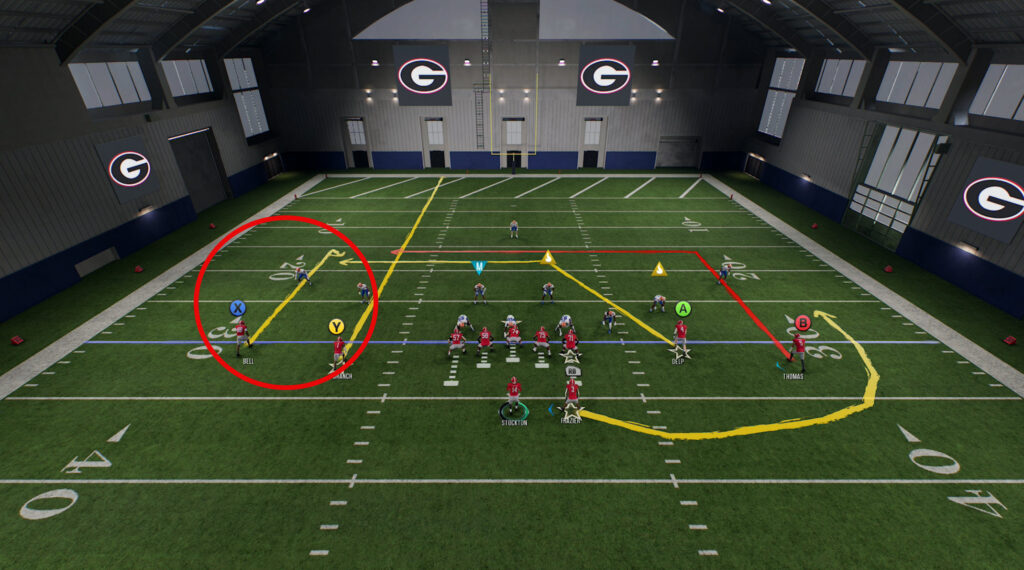
Smart route can shorten or lengthen a route depending on where the 1st down marker is. For example, using smart route in a 3rd and 2 will result in a very different route depth than a 3rd and 25 situation.
It is important to note that you can’t smart route every route in the game. Some routes like slants, zigs, crossing routes, etc cannot be smart routed.
However, routes like ins, outs, posts, corners, curls, and many more can be smart routed. This same logic applies to custom stems as well.
How To Custom Stem In CFB 26
Custom stems were a new feature introduced in CFB 25 that gives you a lot more control over how your receivers run their routes.
With smart routes, your receivers automatically go to the first down marker. With custom stems you can have almost complete control of a route’s depth.
You can make a route break 1 yard from the line of scrimmage or 60 yards from the line of scrimmage.
To use the custom stem feature, you want to first hit Y/triangle, then the icon of the receiver you wish to custom stem, then hold down LB/L1 and tap up or down on the left joystick to lengthen or shorten a route.
One common mistake some people make is not holding down the LB/L1 button and instead just tapping it like you would if you are using the smart route feature.
Let’s take a look at how we can change that same hitch route using custom stems.
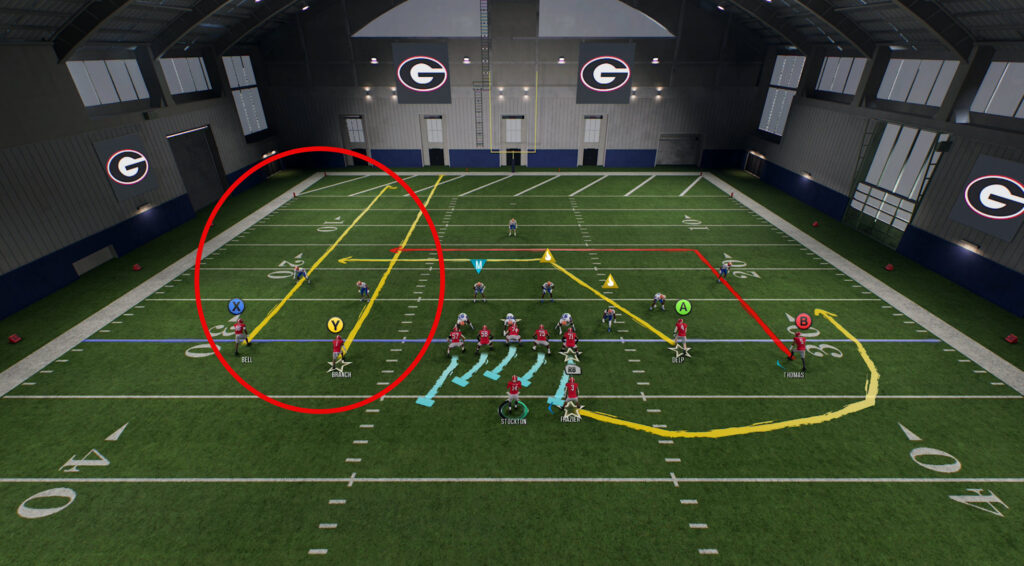
We can make that hitch route go as far down the field as we’d like. Obviously, this wouldn’t be a very effective route 35+ yards downfield but it is just a demonstration of what’s possible.
How To Use Custom Zones
Custom zones is the defensive counter to custom stems. This is a new feature in College Football 26 that gives you a ton of control over where each zone covers.
Below, you can see one example of a Tampa 2 defense that we’ve altered with custom zones.

There are a couple different ways to bring up custom zones, but we’ll go over the simplest and most beginner friendly.
First, when the offense breaks the huddle, scroll over and select a player. Make sure that player is in a zone and then click A/X (A on XBOX, X on Playstation).
Then hold down the LB/L1 button (like you do for custom stems) and adjust the zone depth up or down using the left stick.

Once you are happy with that player’s zone you can move on and adjust other player’s zones.
Next up, check out some of our free College Football 26 dynasty tools:


